Find the Source of a Noisy Desktop Before Buying New Fans
Separate a cooling adjustment from a vibration, GPU fan or changing background workload.
In this article
- Listen through a normal session
- Restore a clear path for air
- Tune the response to short changes
- Replace parts when you can name what failed
- Identify the sound over its full cycle
- Build a baseline you can compare next week
- Check restrictions around the case
- Choose a target the computer can hold
- Try an inexpensive vibration check
The tower starts humming a few minutes into a call even though nobody is playing a game. Before opening the case, determine whether the sound follows temperature, vibration or a specific workload. Two fans moving the same amount of air can sound very different once a panel begins to resonate.
Listen through a normal session
Use the operating system’s activity monitor to watch background work, and use the manufacturer’s monitoring tools or a trusted local utility to record fan speeds and available temperatures. Take notes at idle, during the call, and for a few minutes afterwards. An abrupt rise every time a graphics card starts its fans points toward a different source from a case fan that gradually speeds up with the CPU. A low metallic rattle that remains at the same pitch through temperature changes may come from a loose panel, drive mount or cable.
Keep the tower stationary and observe from the outside. A recording made at the same distance can help compare the sound after a change, although a phone’s automatic gain makes it poor as a calibrated meter. Keep fingers and tools away from moving parts. Shut the system off and disconnect power before checking mounts or moving internal cables.
Restore a clear path for air
Check the intake filter and the openings the case depends on. Some compact enclosures pull air from a bottom opening that sits near carpet. A tower against a wall may recirculate warm exhaust. Move the case to a hard, stable surface with adequate clearance, then repeat the same workload. Inspect filters according to the case maker’s instructions. Keeping a filter clean can help more than adding an exhaust fan to a blocked case.
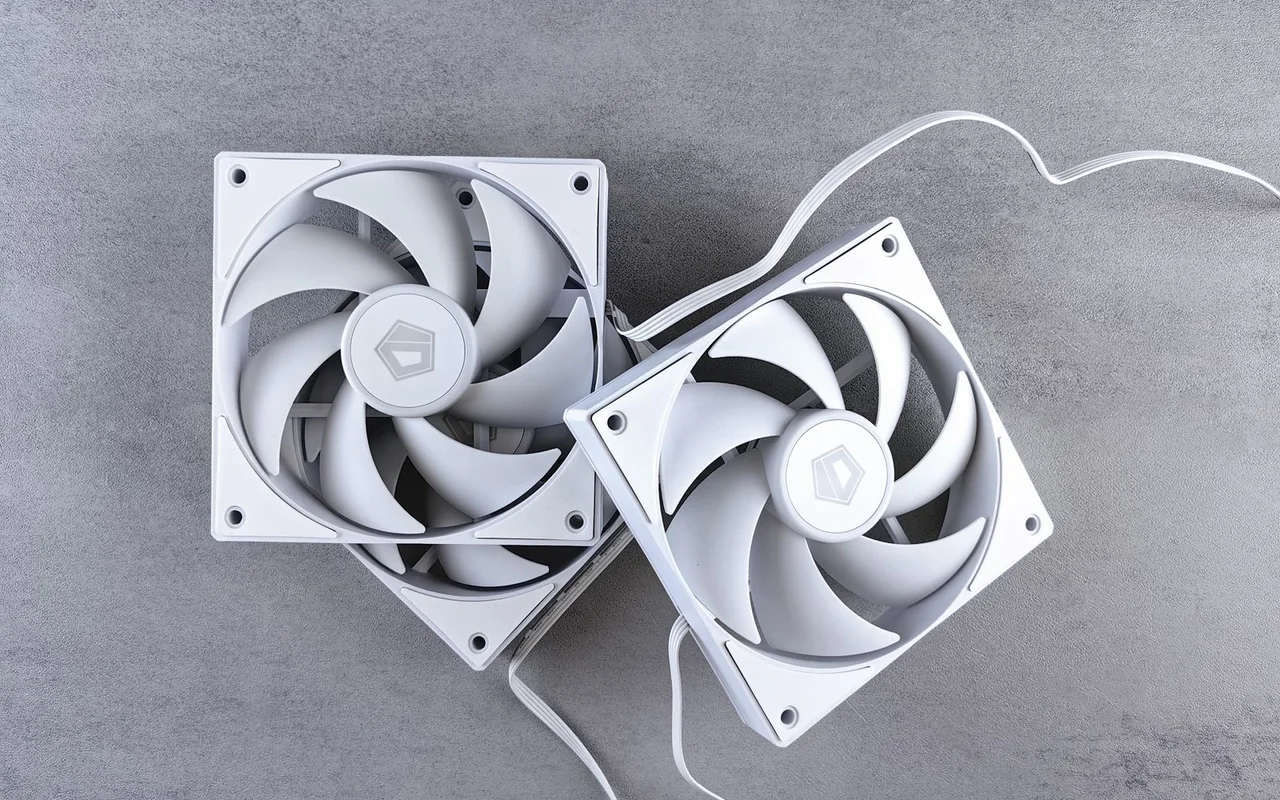
Check the fans you already have. Airflow arrows on a frame or the manufacturer’s diagram tell you which way a fan moves air. Intake and exhaust placement should serve the CPU and graphics cooler without leaving a dead pocket. A case with mesh on much of its surface may respond differently from one with a glass front and narrow side slots.
Tune the response to short changes
If the fans respond sharply to brief CPU temperature spikes, see whether the motherboard supports a gentler response or a delay. Record the original profile and keep the manufacturer’s thermal limits in view. Compare a short burst and a sustained workload, because a quieter first minute can hide a hotter case later. If speed holds or temperature rises significantly over a repeatable test, restore the previous profile and revisit airflow.
Replace parts when you can name what failed
A fan with bearing noise or a curve that cannot reach a suitable speed range is a concrete replacement candidate. Check connector type, available thickness and how the replacement behaves at low speed. Use the original workload to verify the result. A quieter setup should finish the same work, stay safely within expected temperatures and recover to a stable idle afterwards.
Identify the sound over its full cycle
Give the computer a few minutes at idle after starting it. Then open the application that commonly provokes the sound and observe the whole interval, from the first increase through the return to idle. A graphics card may stop its fans at low temperature and then start both together. The moment of startup can be more audible than the steady sound. Check the GPU explanation against the recorded fan speeds instead of assuming the character of the noise identifies the hardware.
The call could invoke hardware acceleration, screen sharing or a background effect. Each can change how the CPU and GPU share work. Make an ordinary call with and without the optional effect and keep the rest of the workload stable. A sound confined to the occasional call can be acceptable in a room where a quiet microphone matters more than complete silence. A rise that continues long after the application closes suggests you should look at recovery temperature or at work queued by another process.
Mechanical sounds leave different clues. A panel that buzzes within a narrow fan-speed band can go quiet above and below that band. A worn fan may chatter during startup or change tone as it warms. An electrical whine can follow graphics load without following the fan reading at all. Reproduce the change by switching a supported graphics setting, such as an application’s frame cap, while leaving cooling controls alone. A change supports the hypothesis, especially if the machine’s recorded temperatures and the fan settings scarcely move during the brief test.
Build a baseline you can compare next week
Choose three intervals. Record idle after the operating system finishes startup. Run an application that normally creates a short spike. Finish with a sustained work period that resembles your longest typical session. In each case note ambient conditions, the load and the temperatures and fan readings you can obtain. Room temperature matters because the cooler ultimately moves heat into room air. A summer comparison against a winter log should account for the difference before it treats the same chip temperature as evidence of the same cooling performance.
Keep microphone placement stable when comparing before and after. Place the phone on an external rigid stand at seated height rather than directly on the desk or case. The desk can transmit vibration and make a quiet spinner sound worse in the recording. A handheld measurement can change by several decibels just through position and device processing. You can still use recordings to distinguish a repeating clack from a smoother rush at the same position. Look at the temperature trace too so the quieter recording can be interpreted in context.
It helps to write the observed result with a unit and duration. A GPU visible at a steady 900 rpm with a buzz is an observation. “GPU noisy” is a hypothesis. A case fan that briefly passes 900 rpm at the same time could be the part that excites the panel. Compare starts and stops at several natural operating points. Record which fan curves you can see and which speeds are unavailable, so an absent number does not quietly turn into evidence that nothing was moving.
Check restrictions around the case
Look inside according to the documented service method only after shutting the computer down. Common obstructions include a cable bundle against an intake, a shifted filter or a dust buildup on a removable grille. Take a picture before moving anything. Change one obstruction at a time where practical. Removing a filter permanently can make a single test seem successful while increasing maintenance and letting dust build up in the heatsink instead.
A nearby wall can place an exhaust grille inside a warm pocket. One arrangement may work with a short CPU test and then suffer during a game or render that keeps both the processor and graphics card busy. Test at ordinary desk settings, with doors or panels in the positions you use them. A computer tested with the side open lives in a different enclosure. If the sound changes with the case open, useful leads include an air path and mechanical resonance. Refit the panel and test the intended final state to distinguish those.
On a compact case, fitting more fans can create interference if air pulled in at one opening immediately exits through an adjacent opening while the components still receive little useful flow. Inspect the manufacturer’s examples for your case and cooler. The convenient fan mount is one option. Choose routes that feed the heat-producing hardware and leave exhaust a safe way out. The goal is adequate cooling at the noise level your work allows.
Choose a target the computer can hold
Fan controls can hold a steady range at ordinary load while increasing speed if a higher temperature persists. Save a copy or photograph of the starting settings and retain thermal protections. Some fans stop or become unstable below a minimum duty. Keep monitoring active during any adjustments and test that the fans start from idle. A percentage setting can correspond to a different rotational speed on a different controller or fan.
If a steep curve makes a fan surge after one short demand, smooth the response within supported parameters. A slower rise can reduce a brief surge. It also leaves more time for temperature to move during a sudden sustained workload. A gradual fall can keep the fan from repeatedly crossing an annoying speed after the job ends. Check both directions of the curve. If the behavior is only bothering you at one pitch, moving the stable target above or below that band while retaining adequate cooling may work better than an across-the-board change.
Repeat the original task with the room in its ordinary state. Put the old and new temperature and fan traces beside one another and listen at the seat where the problem arose. Decide whether the improvement remains useful with a second workload and whether the machine reliably settles. If a bearing or mounting point still has a distinctive sound after that comparison, a compatible replacement is a well-defined repair.
Try an inexpensive vibration check
If the noise appears only on a particular desk, place the powered-off case on a hard, stable surface in another suitable position and repeat the short test. A hollow worktop can amplify a mechanical vibration through a case foot, even when the fan sounds ordinary near another surface. Check that the four feet make even contact, that accessible screws are secure according to the manual and that no cable is resting against the side panel. Keep the computer’s intake openings clear in the borrowed position. Avoid improvising with soft padding that obstructs a bottom grille. If the sound changes substantially while temperatures and fan readings stay close to the baseline, inspect the mounting path and seating before investing in a different cooler.